
Projects and tasks
Use this workflow to set up an annotation project and assign work. You need an account with access to Projects and tasks, an existing user to assign, and a corpus with at least one document. Use your own project, users, and data; the names below come from a practice run.
Project membership and task assignment are separate. Add a user to the project first, then to a specific task. Add the corpus to the project before assigning it to that task user. Assign the corpus before selecting its documents.
Create a project#
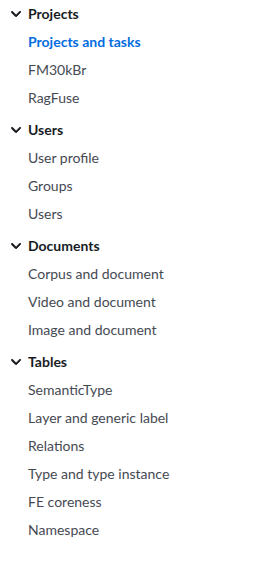
1. Click Management in the top navigation.

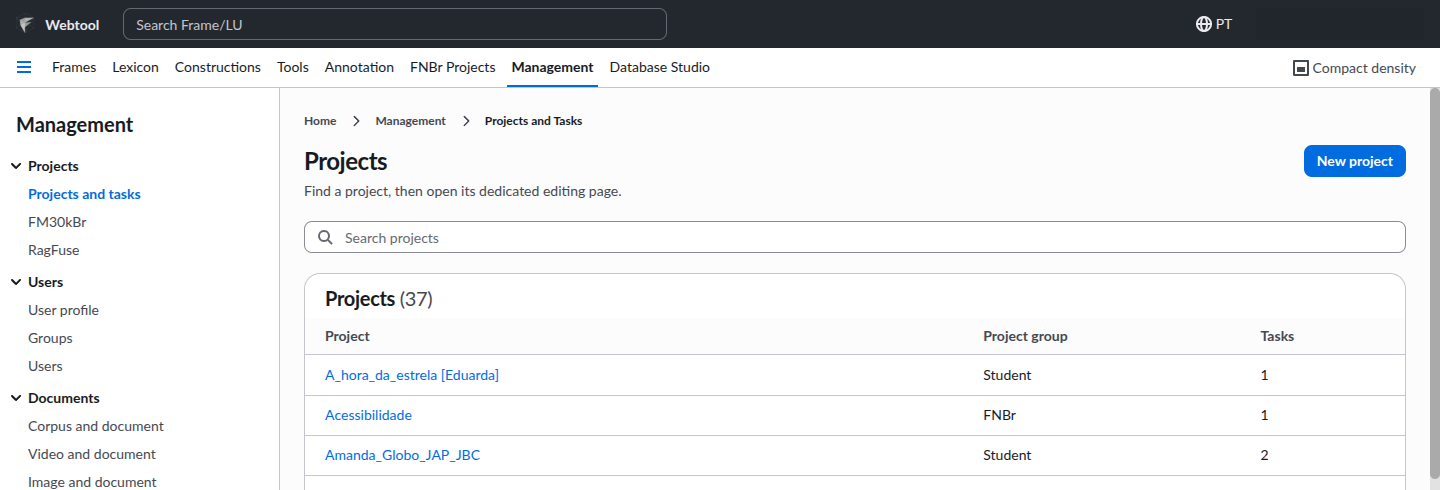
2. Under Projects in the left menu, click Projects and tasks.
3. Click New project at the top right of the Projects page.
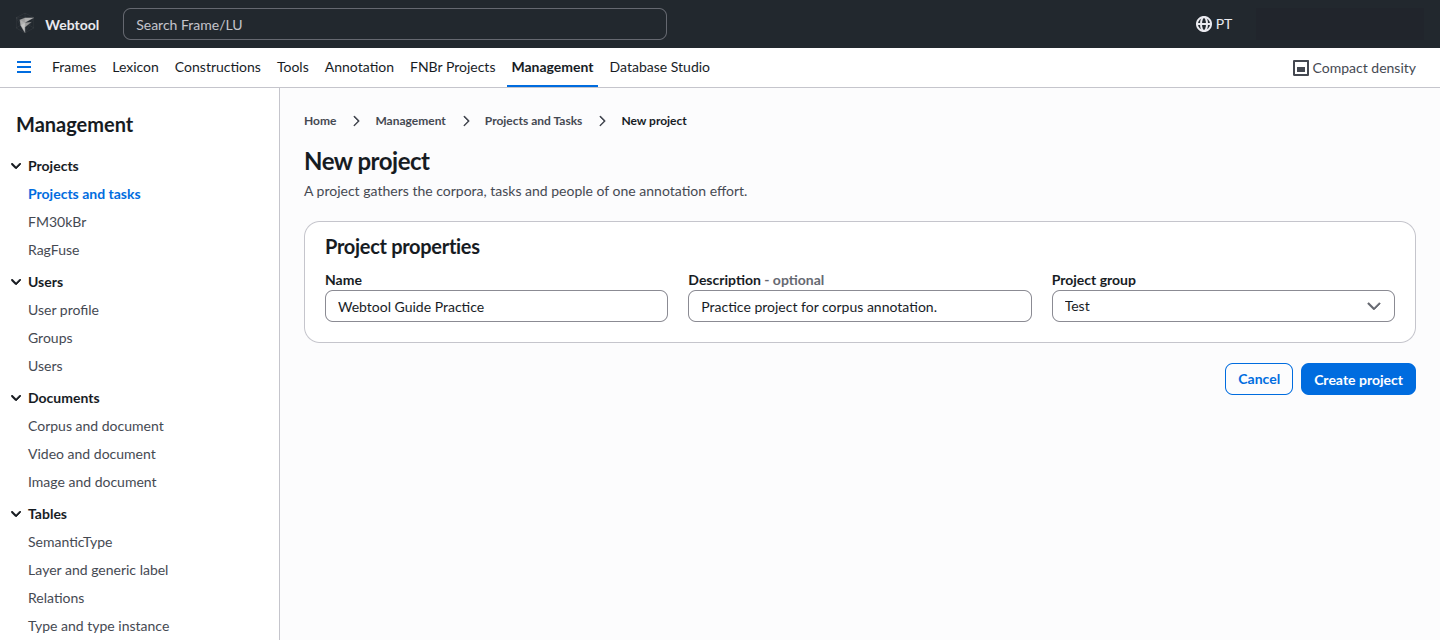
4. Fill in Name and, optionally, Description. In the example, the name is
Webtool Guide Practice and the description is Practice project for corpus annotation.
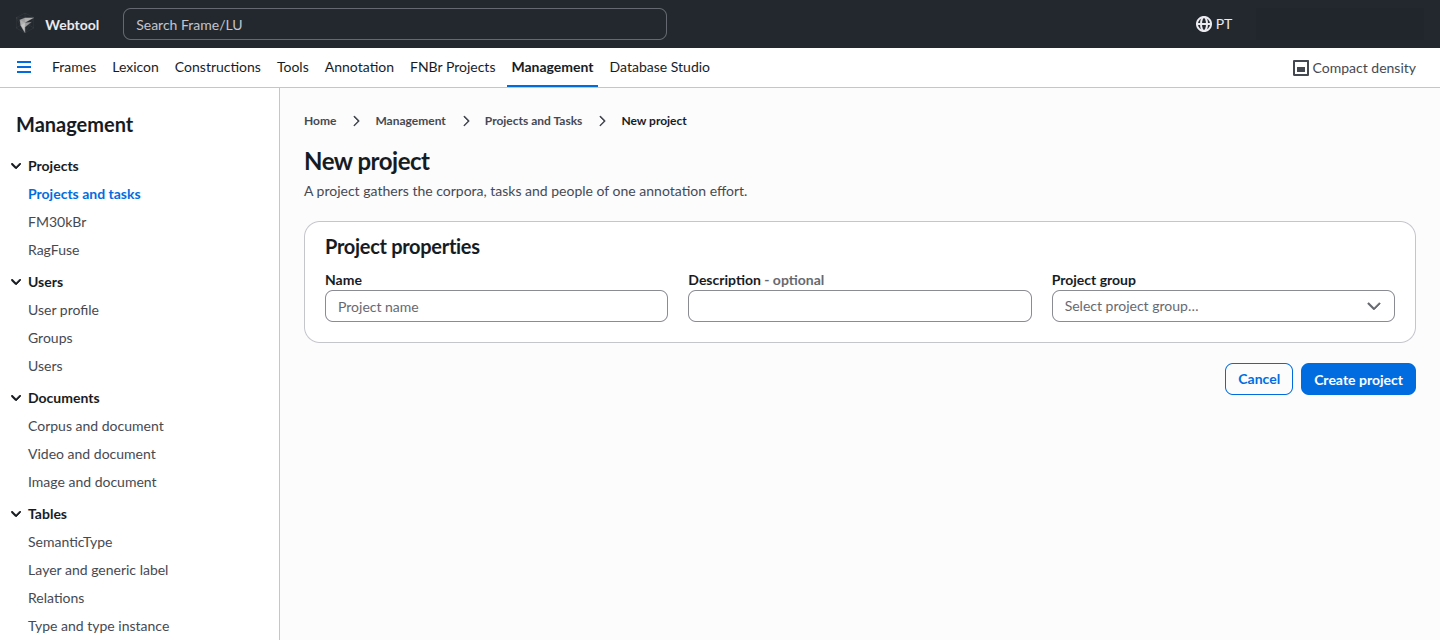
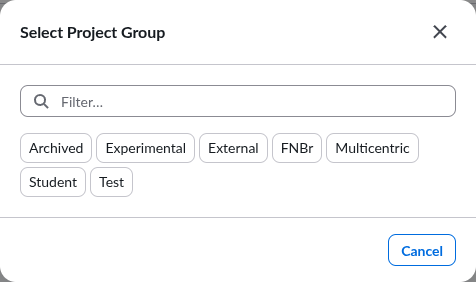
5. Open Project group and choose the appropriate group. The practice project uses Test.
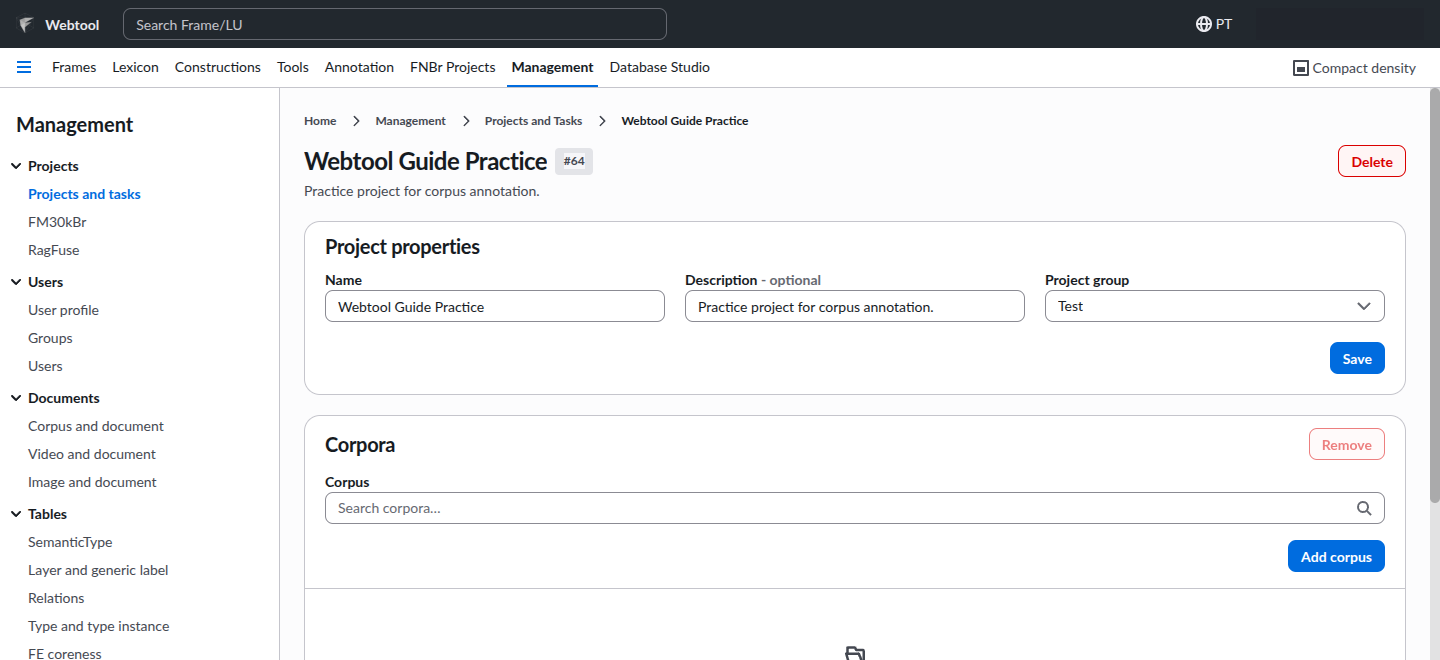
6. Click Create project. Webtool opens the new project's editor. Check that its heading matches the name you entered.
Add a task to the project#
7. Open Tasks using the section index or scroll to it on the project page.
In Task name, enter Practice FE annotation for this example.
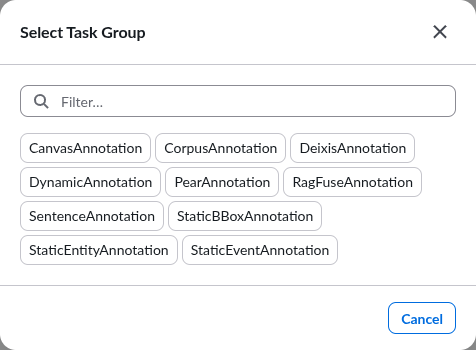
8. Open Task group and select CorpusAnnotation. This is the task group for this corpus annotation example. Choose the group that matches your own task.
9. Leave Active checked if the task is ready to use, then click Add task. Check that the task appears in the Tasks table.

Add a user and a corpus to the project#
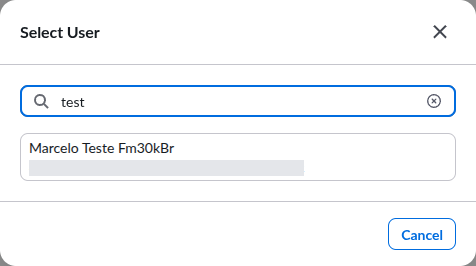
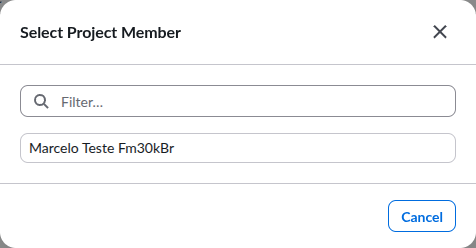
10. In Project users, open User and filter by name. Select the intended account. The example uses the test account Marcelo Teste Fm30kBr.
11. Click Add user. Leave Project manager unchecked for a regular project member; select it only if this person should manage the project.

12. Check that the user is listed as a Member. They belong to the project now, but are not yet assigned to the task.

13. In the project's Corpora section, click Search corpora… and search for
Audition. Click the matching corpus.
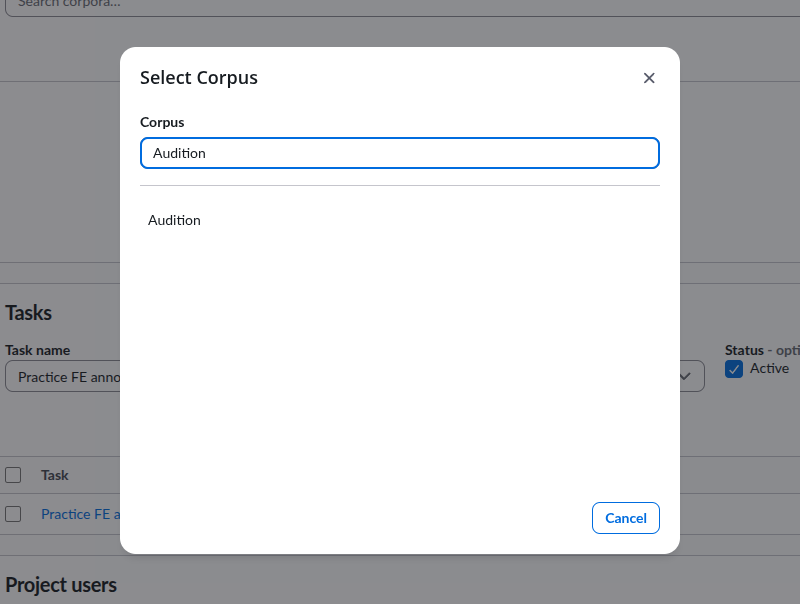
14. Click Add corpus and check that the corpus appears in the project's list. This makes it available to assign to task users in this project.

Assign the user to the task#
15. In the Tasks table, click Practice FE annotation. Click the task name, not the checkbox. Webtool opens the task's editor.

16. Check Task properties, then open Project member in Task users. If you need to change the task itself, edit its properties and click Save in that section. Assigning users is a separate action in Task users.
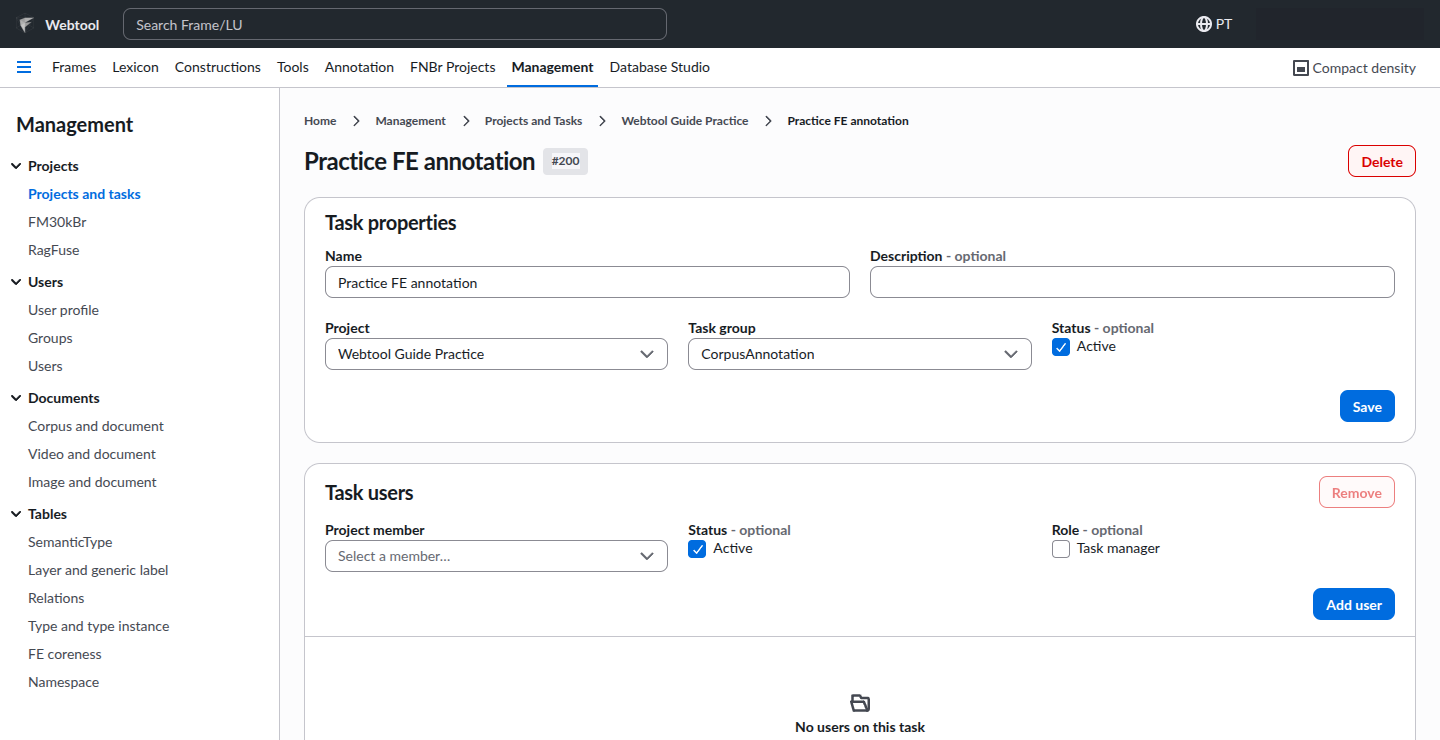
17. Select the project member. If the user isn't listed, check that they were added under Project users and aren't already assigned to this task.
18. Click Add user in Task users. Keep Active checked for an active assignment. Leave Task manager unchecked for a regular annotator.

19. Click the user's name in the Task users table to open their individual assignment. This is where you assign corpora and documents for that user on this task.

Assign the corpus and document#
20. Confirm the user and task at the top of the assignment page. Scroll to Corpora and open Project corpus.
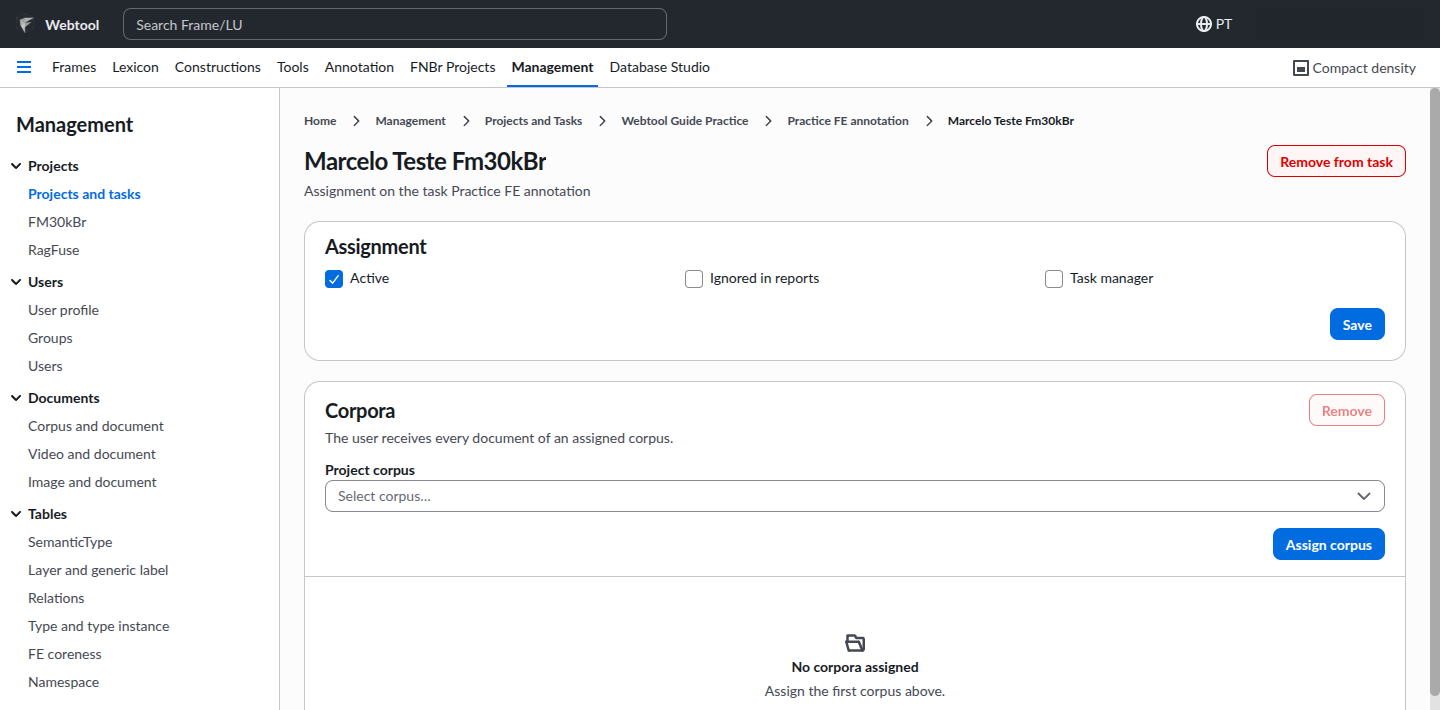
21. Select Audition from the available project corpora.
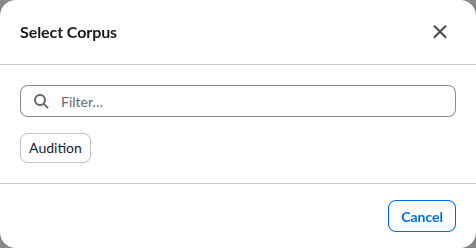
22. Click Assign corpus. Check that Audition appears in the user's Corpora table before going to Documents.

23. In Documents, open the Document picker and filter by name. In this
example, type A_hora and select A_hora_da_Estrela_ficção from Audition.
If no documents are available, check that the document's corpus is assigned to
this user. If you just assigned the corpus, reload the assignment page before
trying again.
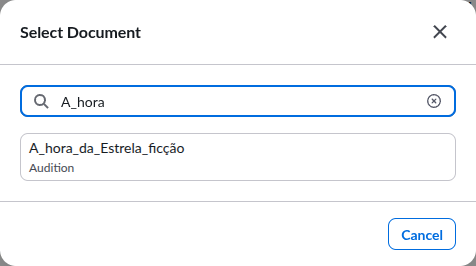
24. Click Assign document. Repeat the document selection and assignment for each additional document the user needs.

25. Check the Documents table. The selected document should appear with its corpus. These assignments belong to the user on this task; to assign work to another user, open that person's assignment from Task users.
