
Frames
Use the Frame editor to find a frame, update its definition or classification, and manage the lexical units (LUs) that belong to it. This walkthrough uses Usar as the frame and aplicar.v as the LU. Sign in with an account that has access to the Frame editor, and save only changes you intend to make.
Open the Frame editor and search#
1. Click Frames in the top navigation.

2. In the left menu, under Editor, click Frame. If Editor is collapsed, click its heading first. The Frames link under Report opens the report, not the editor.
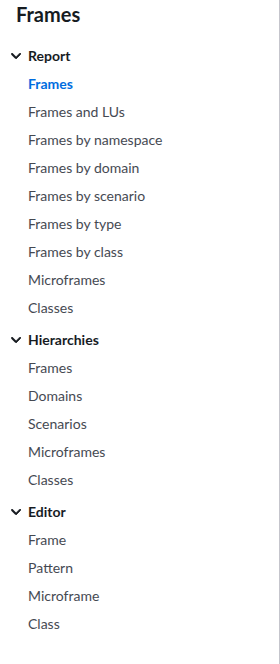
3. Type Usar in Search frames. Results update as you type. Leave
Match from start on to find names that begin with your search text; turn it
off to match text within a name.
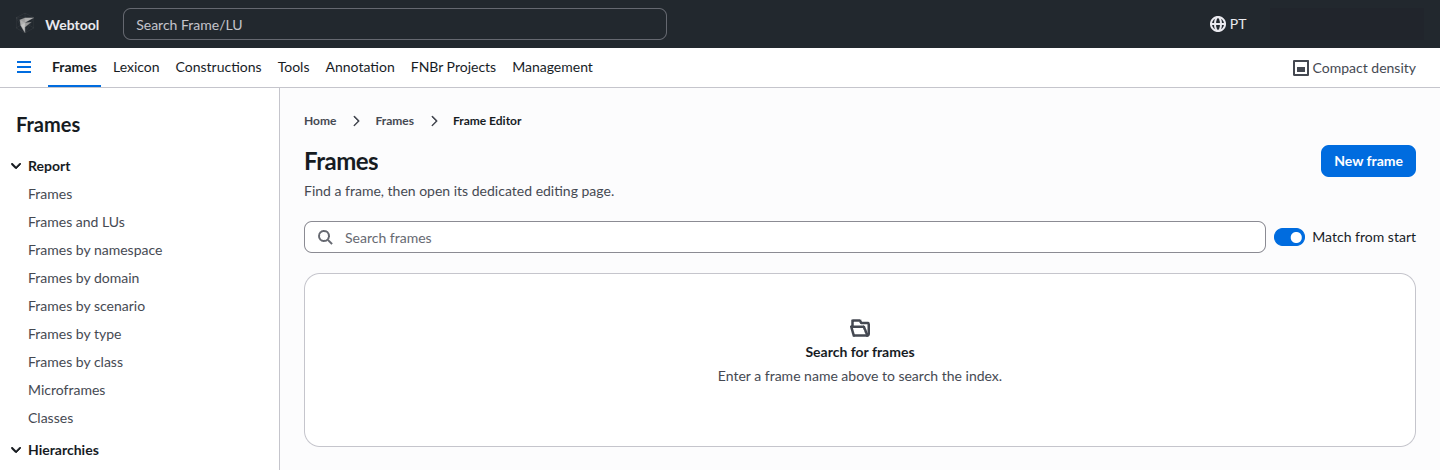
4. Click Usar in the results. Use the Namespace column to distinguish
similarly named frames. In this example, pick Usar in Eventive.Agentive.
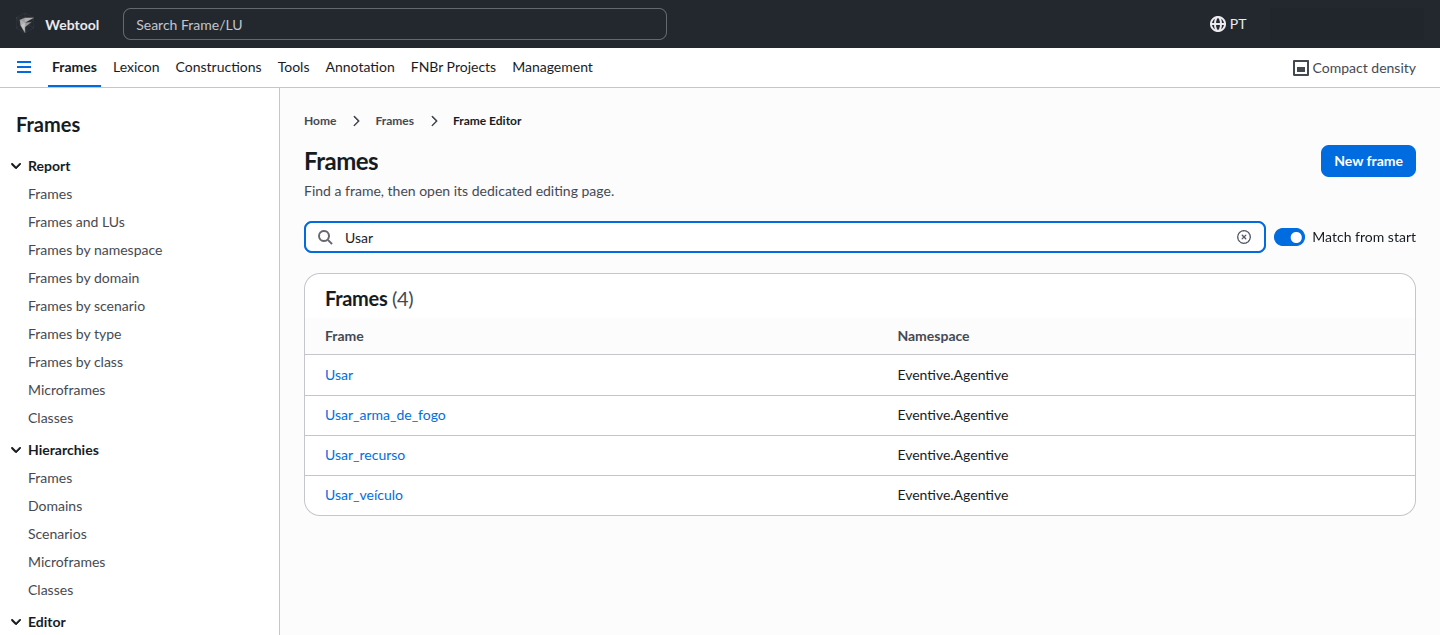
5. Check the frame heading and Properties summary. Confirm that you opened Usar before editing. The summary shows details such as its entry key, namespace, and English name.
Edit the frame#
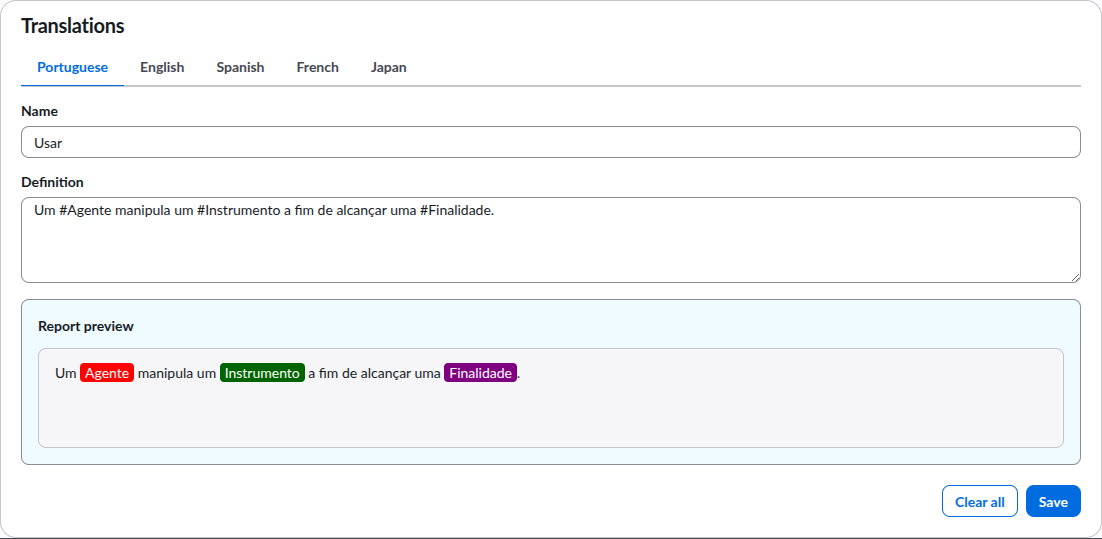
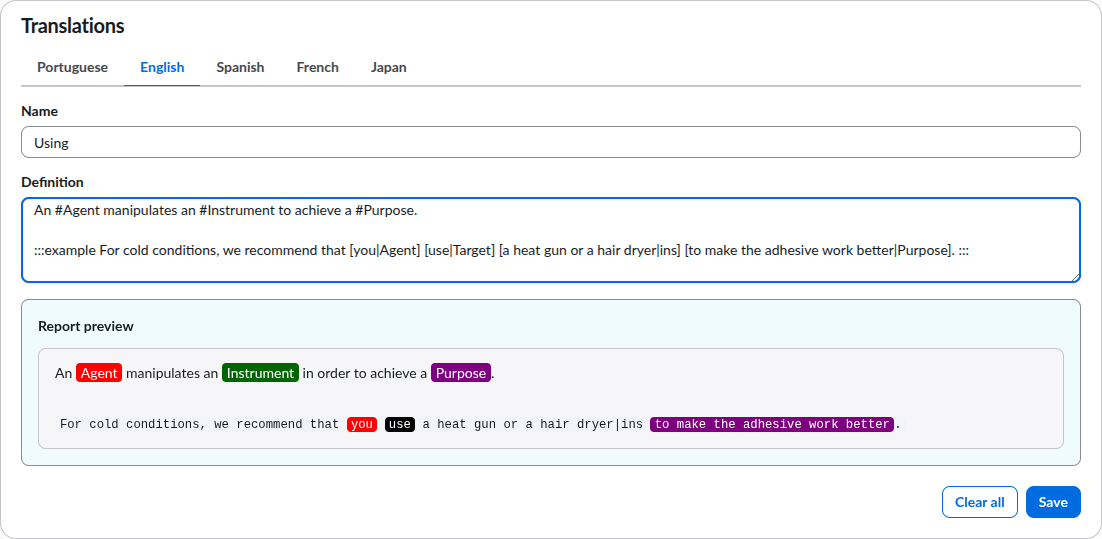
6. In Translations, click the language tab you want to edit. For this example, click English to edit the definition of Using.
7. Edit Name or Definition, review the Report preview, then click Save in
Translations. The example shows a wording change in the English definition.
Keep markers such as #Agent intact when they refer to frame elements. Changing
the English Name can also change the frame's entry key, so leave it alone
for a definition-only edit.
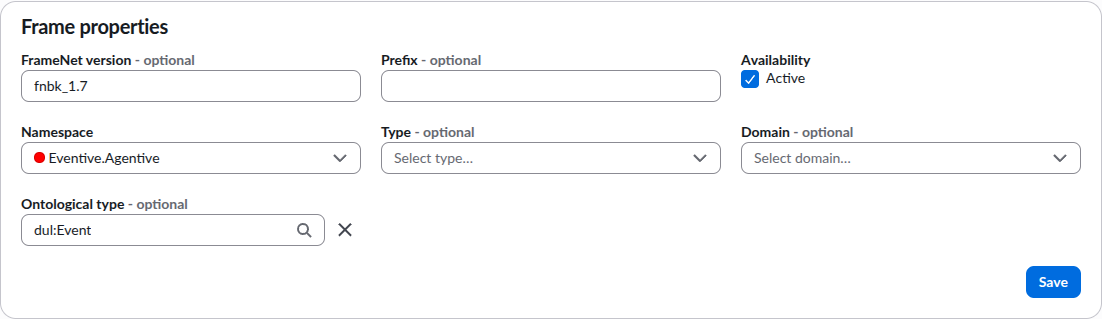
8. For classification and availability, use Frame properties. Change the relevant field (for example, Namespace, Type, Domain, or Active) and click Save in that section. The Properties summary at the top is read-only.
Edit an existing lexical unit#
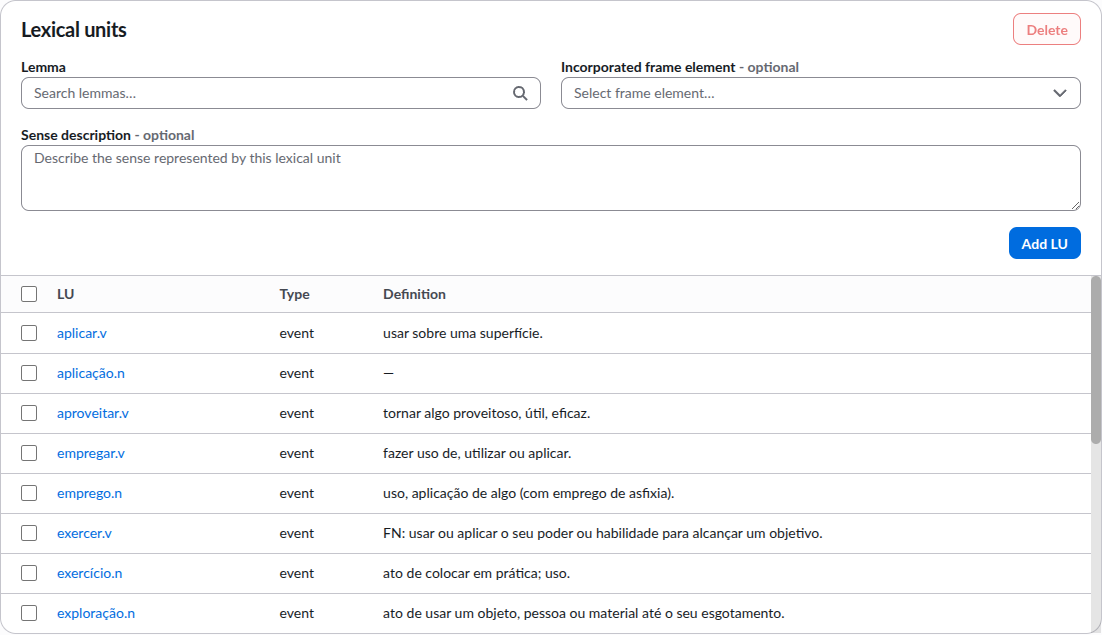
9. Scroll to Lexical units and click aplicar.v in the table. Use the
Type and Definition columns to check the entry before opening it. Click
the LU name, not the checkbox used to select a row for deletion. The LU editor
opens in a new tab, leaving the frame editor open.
10. Check the LU name and its Frame, then find Sense description under LU properties. This field defines the LU's particular sense in Usar; editing it does not change the frame definition. Leave Lemma unchanged when you are only revising the sense description.
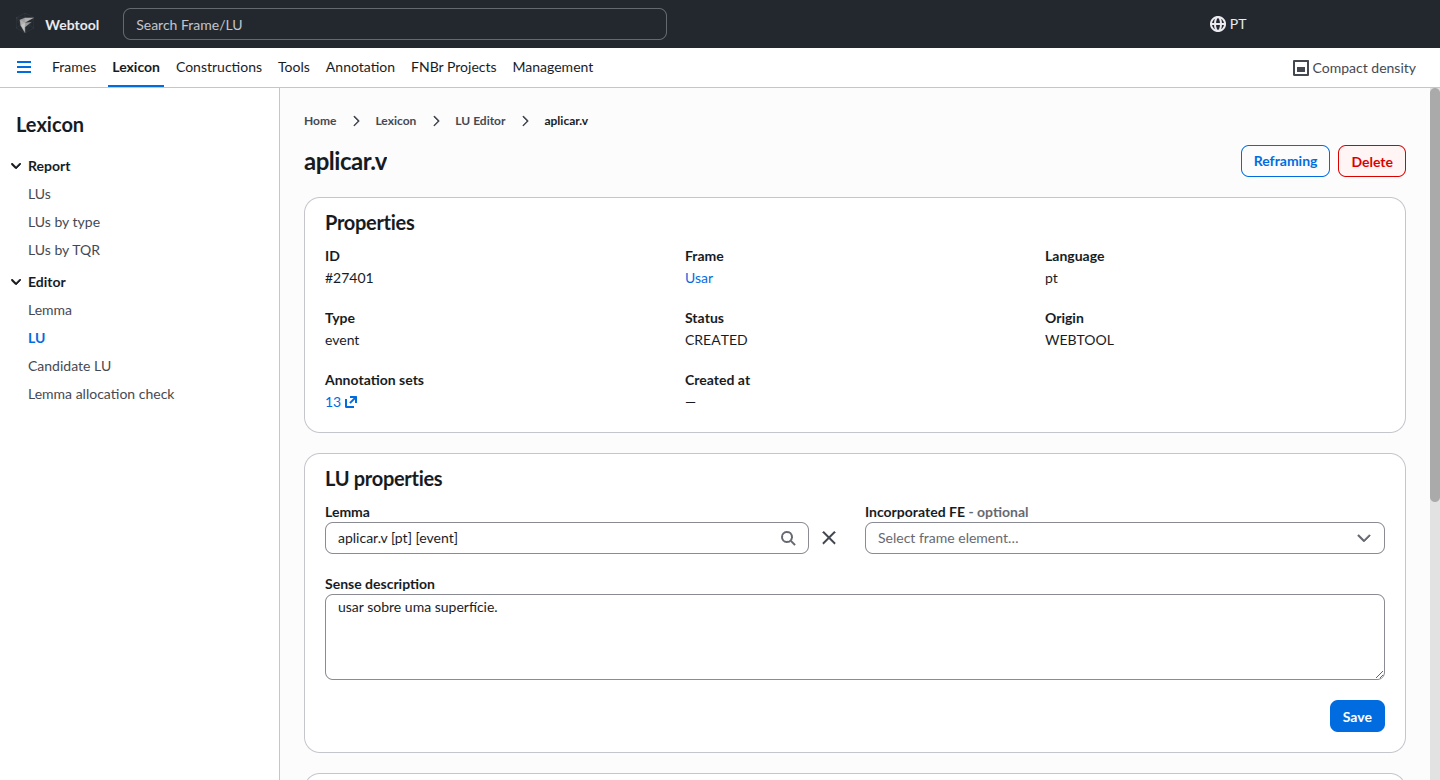
11. If needed, open Incorporated FE. Choose a frame element only if its meaning is built into the LU itself. The picker lists FEs from the current frame. For this definition-only example, click Cancel and leave the field unchanged.
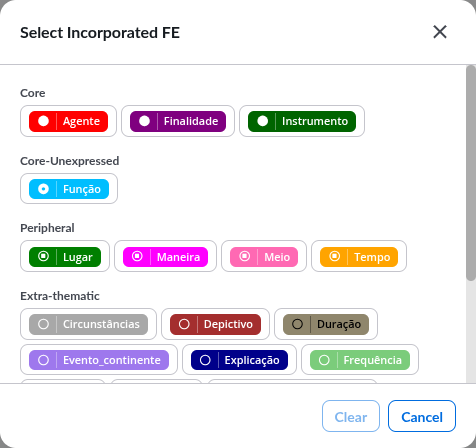
12. Edit Sense description and click Save in LU properties. In the example,
capitalize the first word to get Usar sobre uma superfície. If you meant to
move the LU to another frame rather than revise its definition, use
Reframing instead.
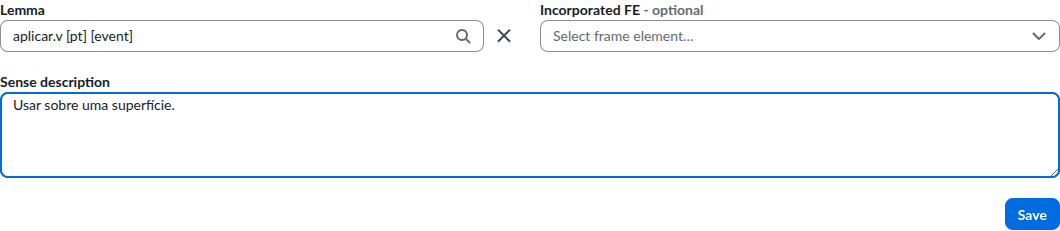
13. Return to the frame tab and reload it. Scroll back to Lexical units
and check that the Definition column for aplicar.v shows the saved text.
Add an LU to a frame#
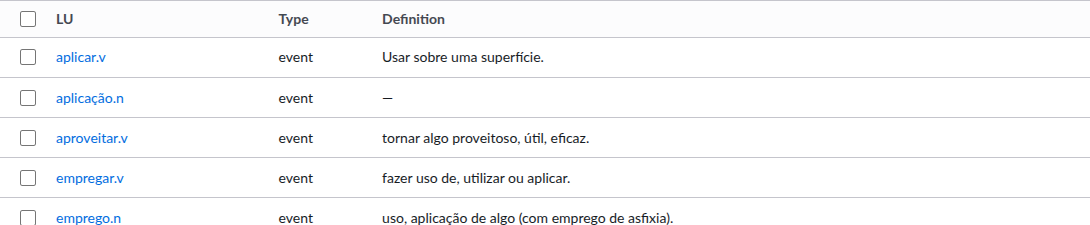
Use the form above the Lexical units table only when the sense belongs in this frame and the LU isn't already listed. To edit a listed LU, click its name instead.
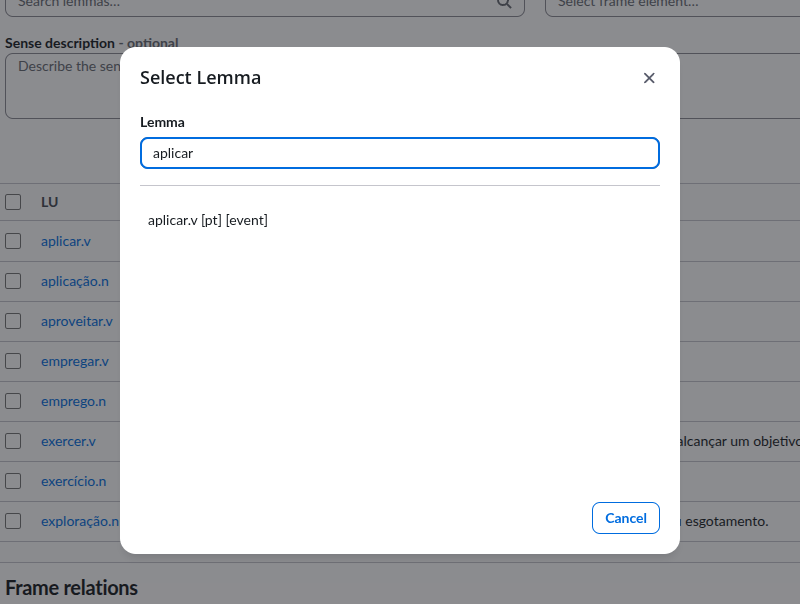
14. Click Search lemmas… in the Lemma field and type the lemma name in the
picker. Choose the result that matches the intended language, part of speech,
and type. The screenshot shows how to find aplicar.v; do not add it again to
Usar. If your lemma doesn't exist, create it first in Lexicon → Editor →
Lemma.
15. Enter the Sense description, select an Incorporated frame element only if applicable, and click Add LU. Check that the new LU appears in the table. Click its name to open the full LU editor.