
Lemmas
A lemma is the dictionary form of a word, such as correr. A form is a way that lemma appears in text, such as an inflected spelling. A lemma can be a single word or a multiword expression. Sign in with an account that can access the Lemma editor.
Open the Lemma editor#
1. Click Lexicon in the top navigation.

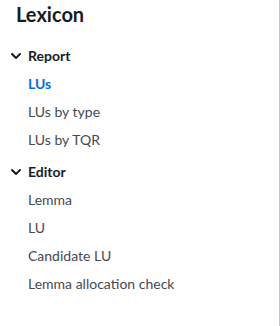
2. In the left menu, under Editor, click Lemma. If Editor is collapsed, click its heading first.
Search for a lemma#
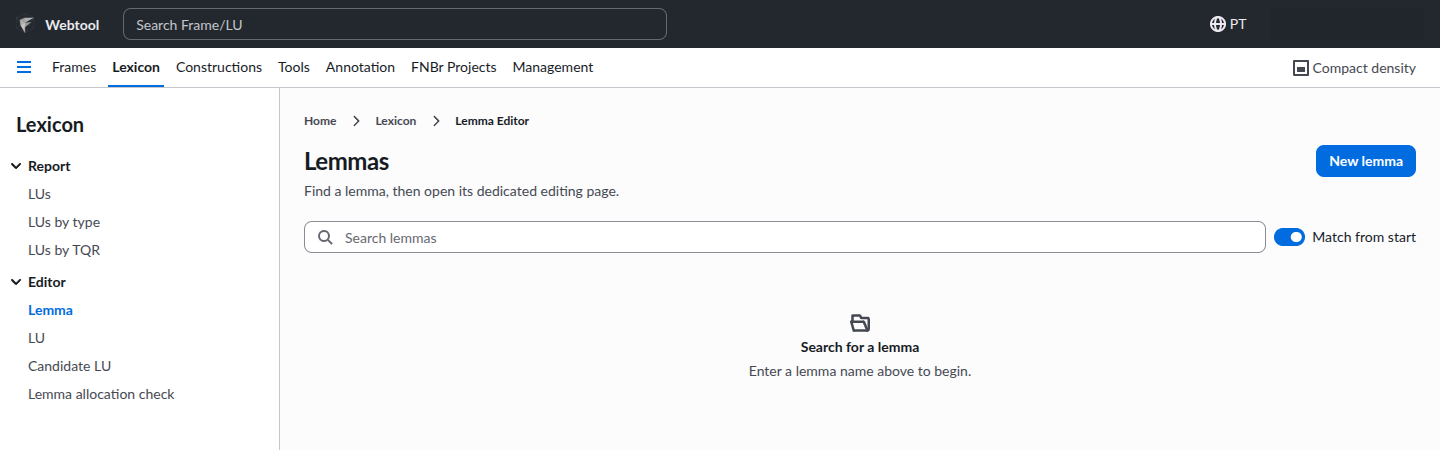
3. Type correr in Search lemmas. Results appear as you type. With
Match from start on, the name must begin with your search text. Turn it off
if you want to match text anywhere in the name.
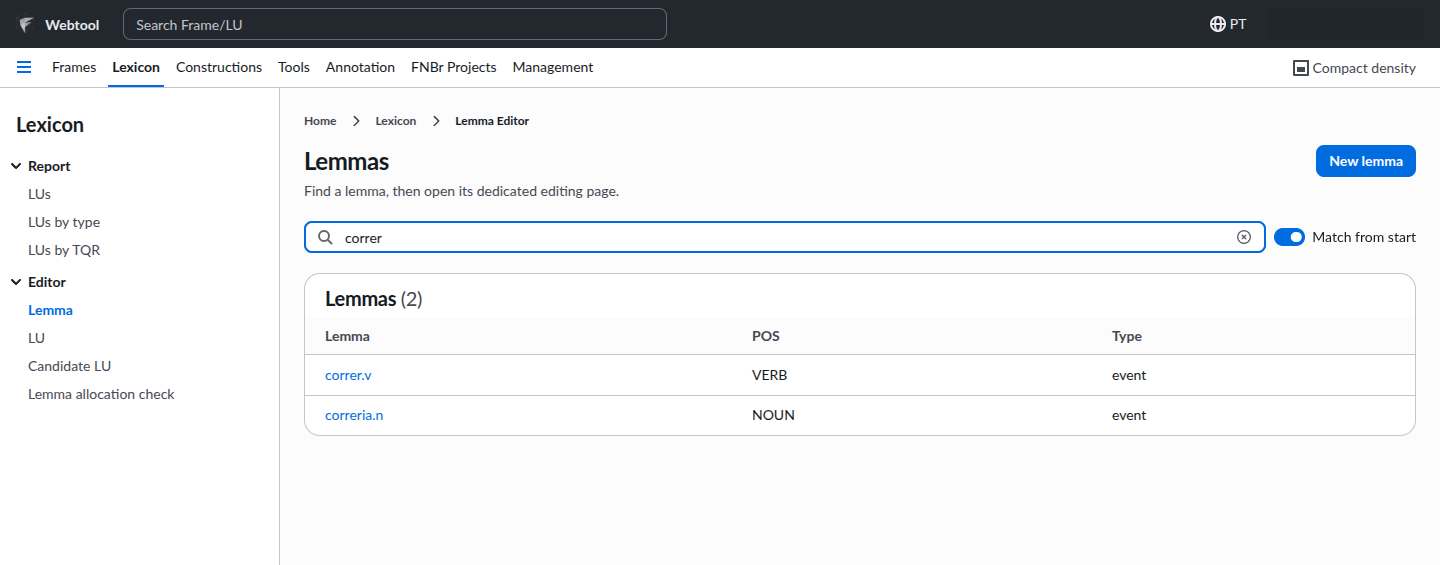
4. Click correr.v in the results. If several entries match, use the
POS (part of speech) and Type columns to identify the right one.
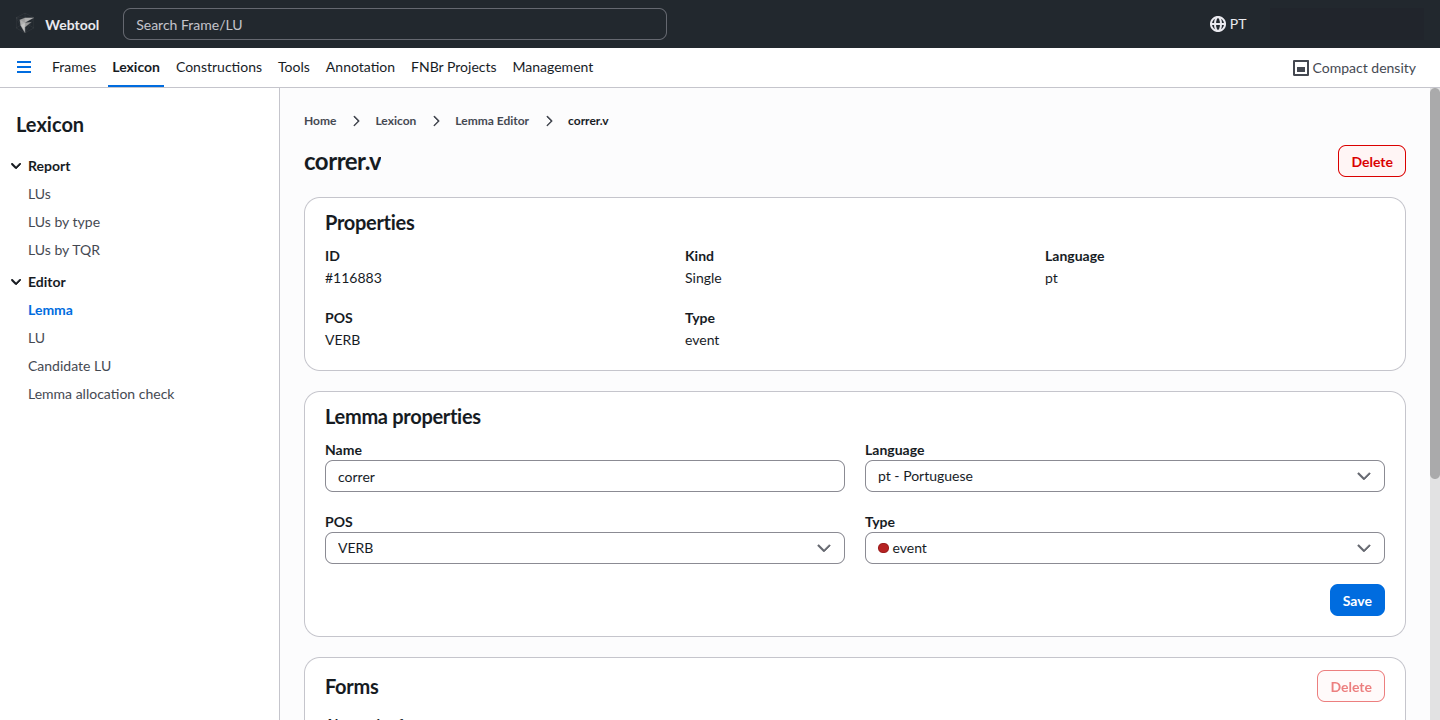
5. Check the Properties on the lemma page. The heading confirms which entry you opened. You can also see its language, POS, and type.
Create a lemma#
The example below uses zafúrio, a fictional Portuguese noun for a tool. Don't add the example to a shared lexicon; use a lemma you intend to register.
6. Click Lemma in the left menu again, then search for the name you intend to
add. Check for an existing entry with the same language, POS, and type before
creating a new one. In this example, searching for zafúrio returns no matches.
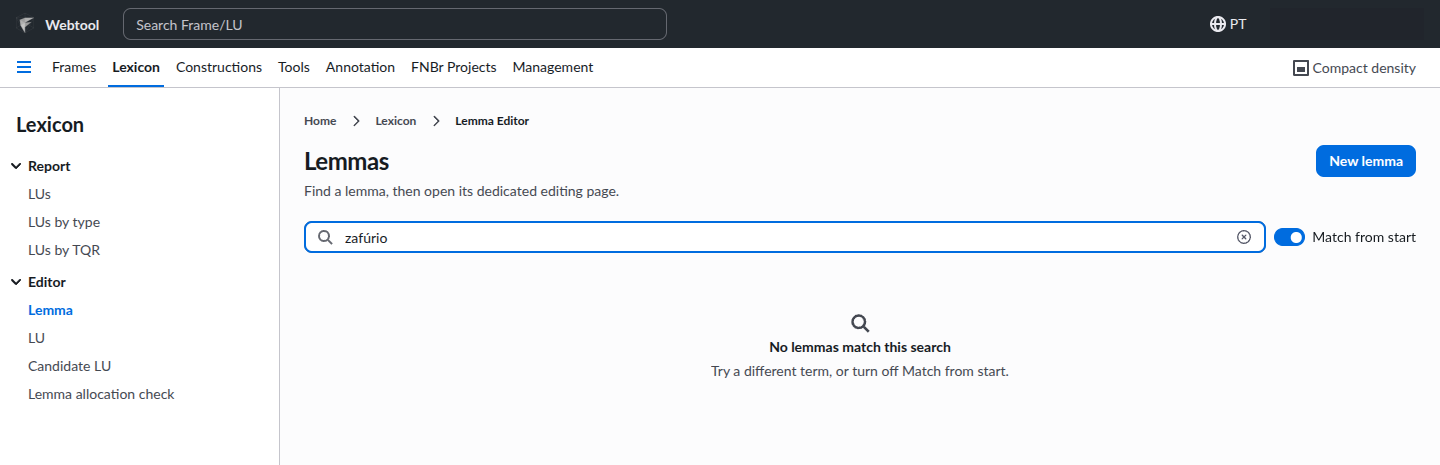
7. Click New lemma at the top right of the Lemmas page.
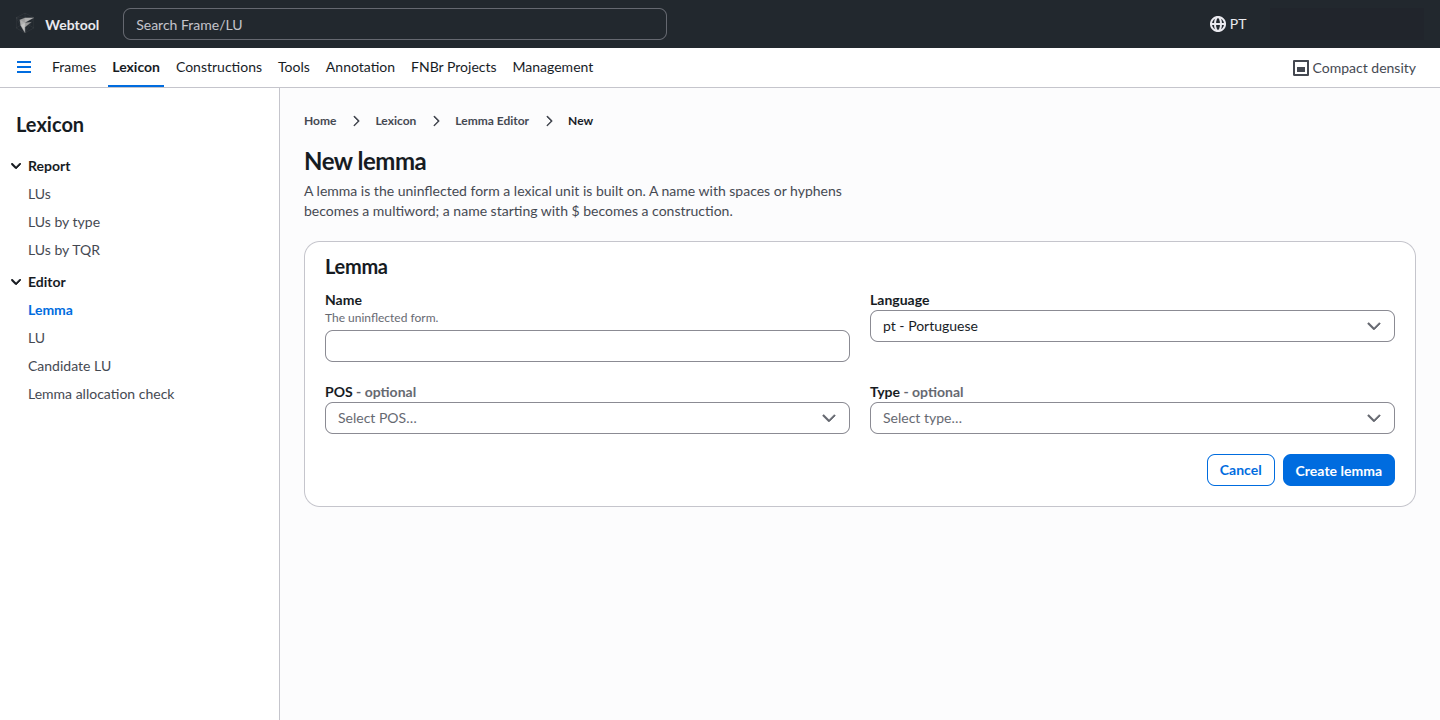
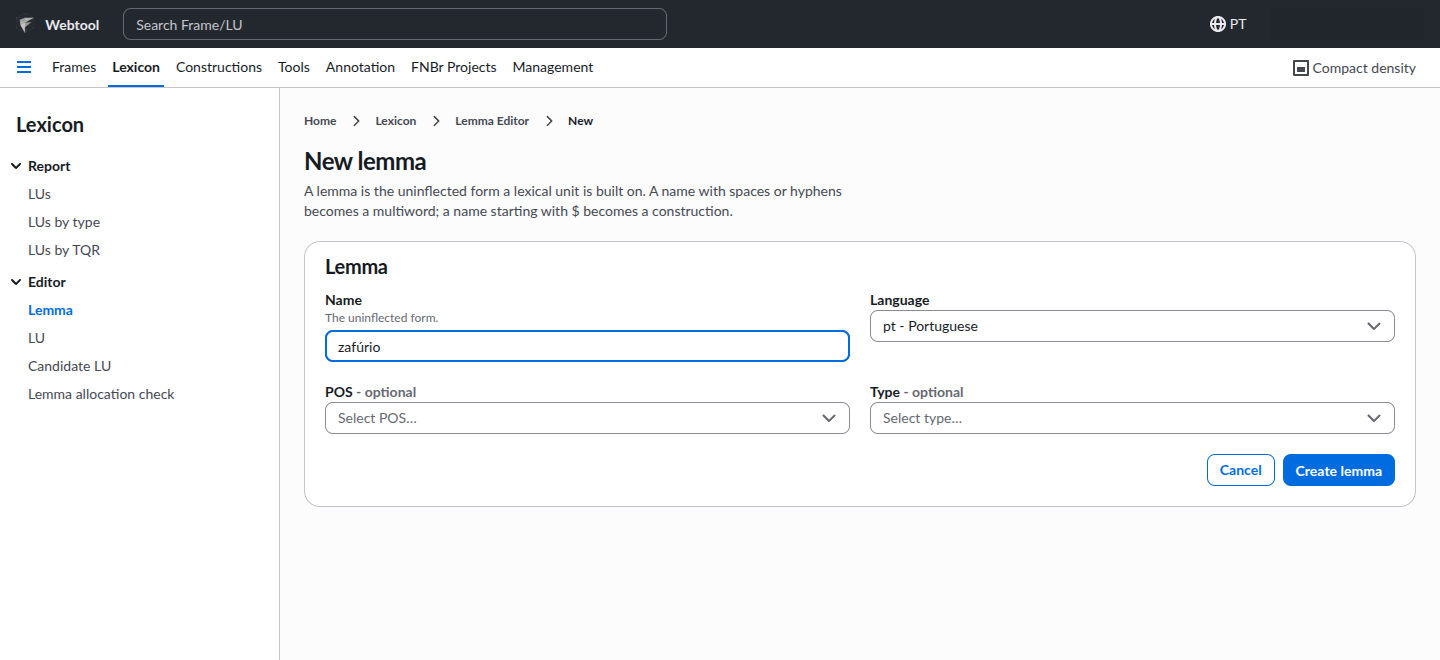
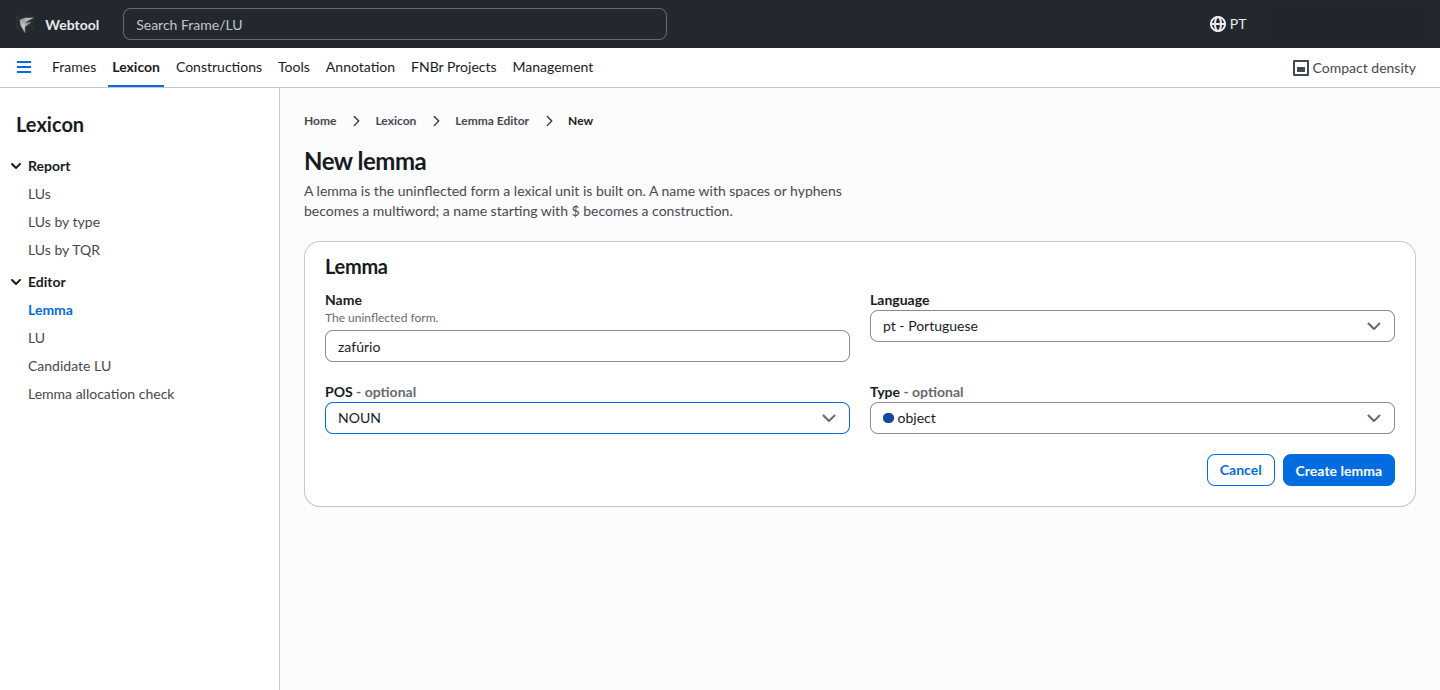
8. In Name, type zafúrio. Enter the dictionary form, not its plural or a
POS suffix such as .n.
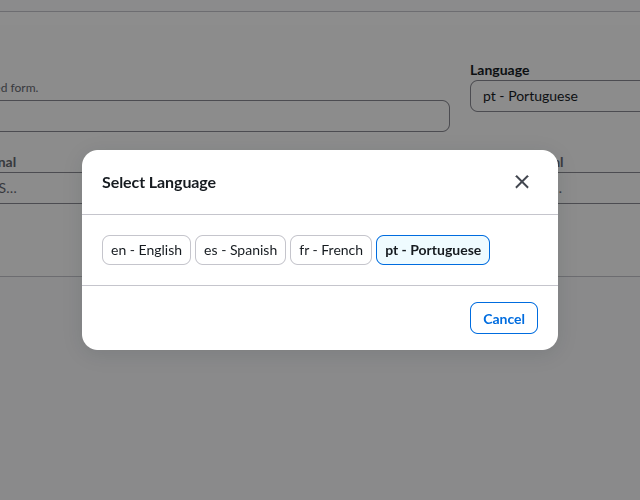
9. Open Language and choose pt - Portuguese. If the correct language is
already displayed, you can leave it selected.
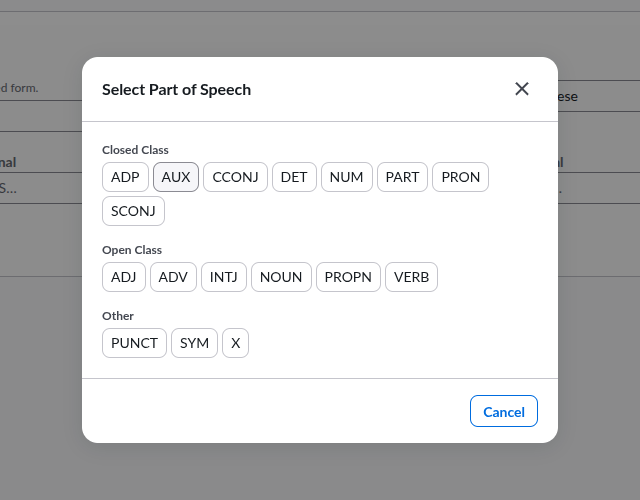
10. Open POS and choose NOUN under Open Class. POS is optional in the
form; choose the value that fits your entry.
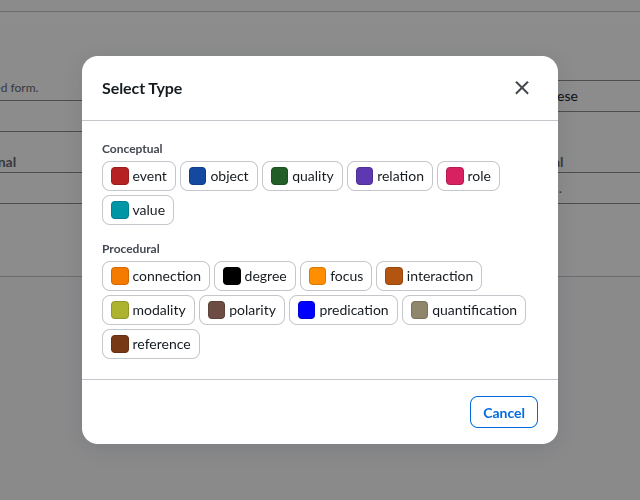
11. Open Type and choose object under Conceptual. Type is also
optional in the form. For this example, the noun names a tool.
12. Review the fields and click Create lemma. Webtool opens the new lemma's page.
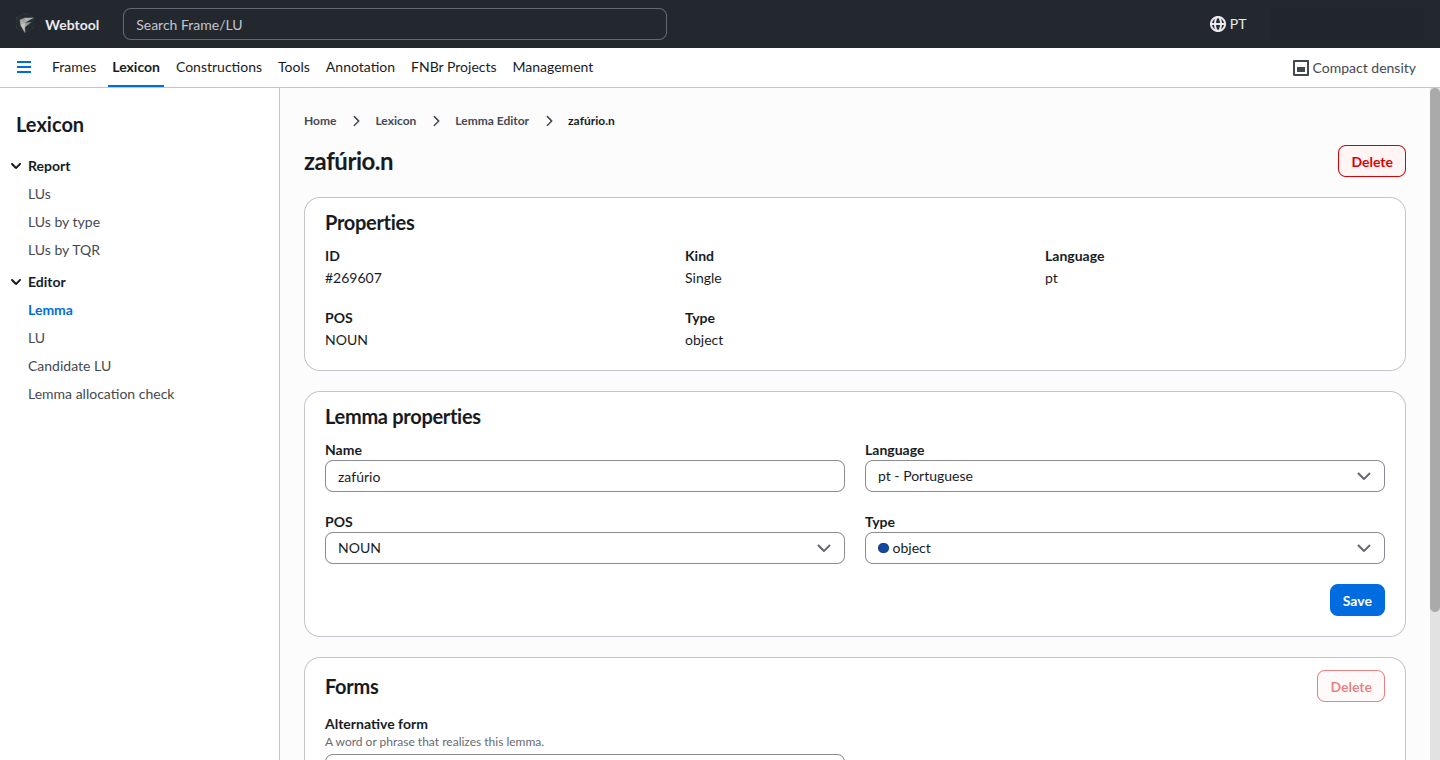
13. Confirm that the page heading is zafúrio.n. Check that Properties
shows the language, POS, and type you chose.
Add forms to the lemma#
14. Scroll down to Forms. Webtool has already entered zafúrio as the
Canonical form. Do not add it again as an alternative.
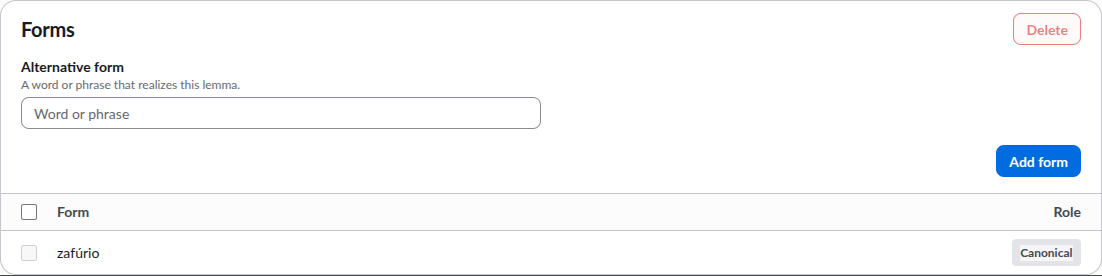
15. In Alternative form, type zafúrios, then click Add form. Add one form
at a time. Use Add form, not Save in the Lemma properties section.
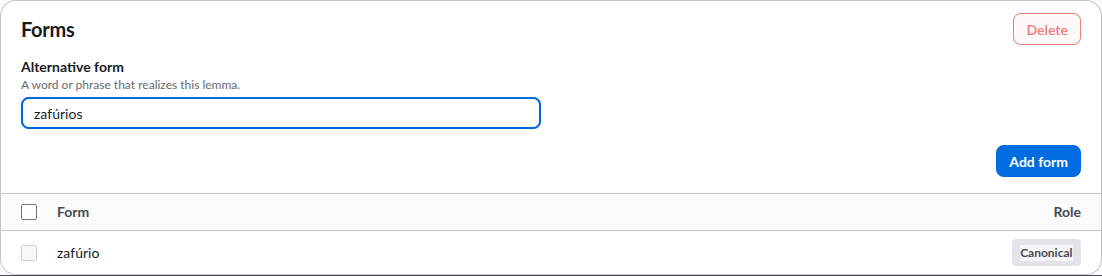
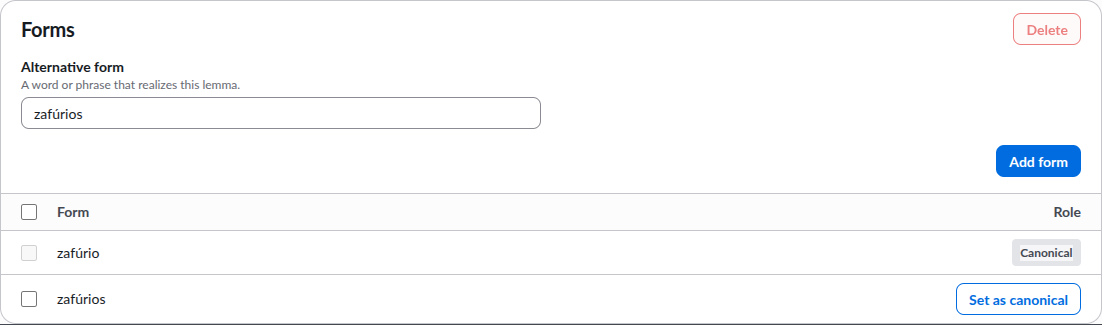
16. Check that zafúrios appears as a separate row and that zafúrio is
still marked Canonical. To add another form, replace the text in
Alternative form and click Add form again.
Create a multiword expression (MWE) lemma#
A multiword expression is entered as one lemma. In this example, janela solar names a type of window. Use an expression you intend to register rather
than adding the practice entry to a shared lexicon.
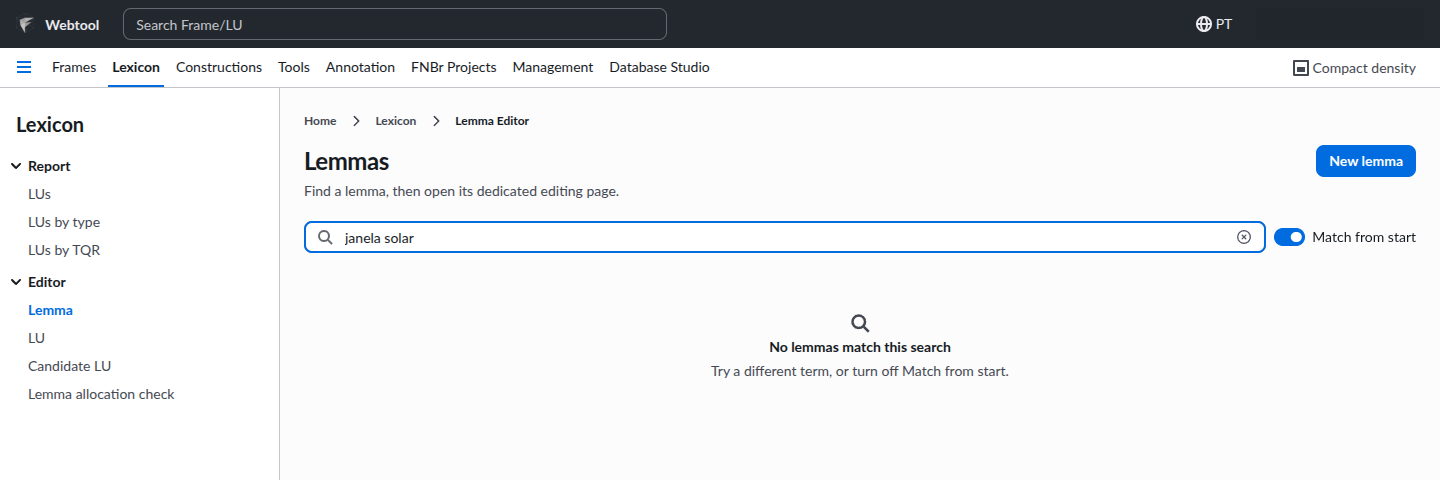
17. In Lexicon → Editor → Lemma, search for the whole expression. Type
janela solar in Search lemmas to check whether the entry already exists.
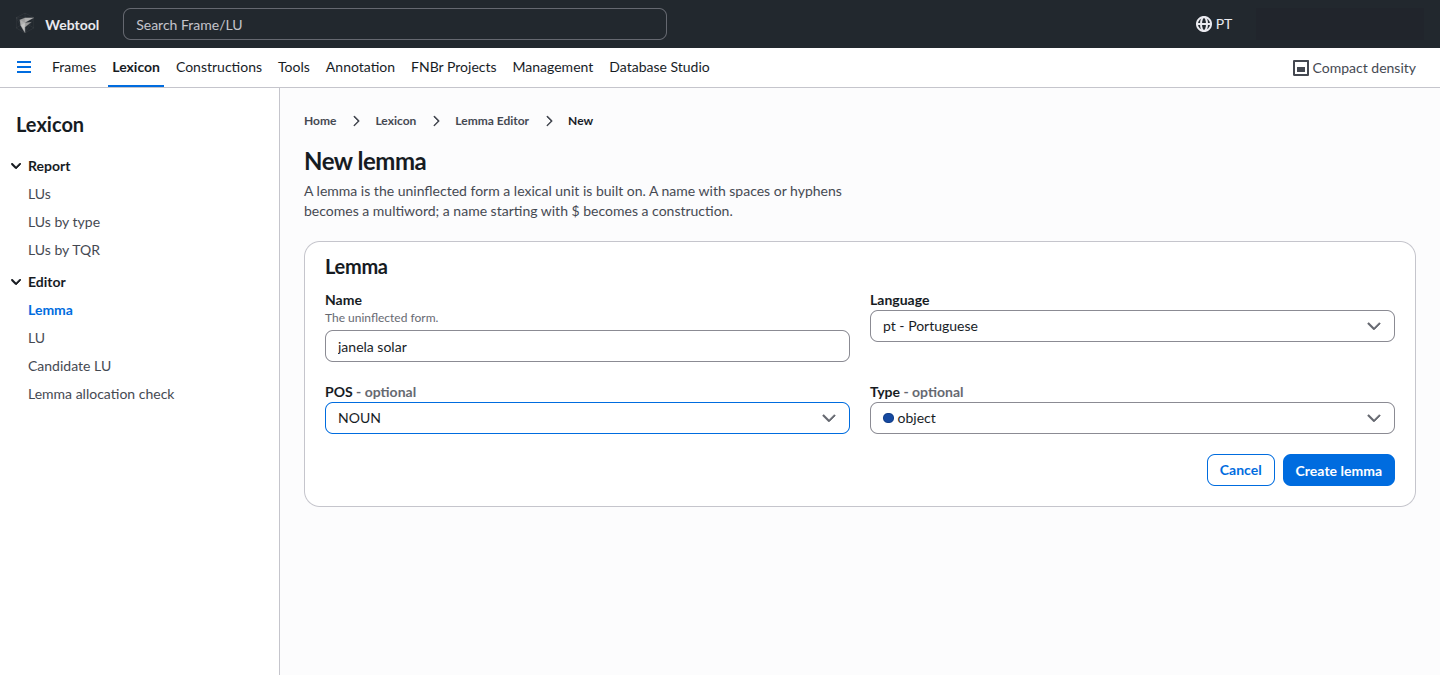
18. Click New lemma and type janela solar in Name. Enter both words,
separated by a space, in the same field. Choose pt - Portuguese for
Language, NOUN for POS, and object for Type. Click
Create lemma. You don't need to type a pattern in the Name field:
Webtool generates one from the expression.
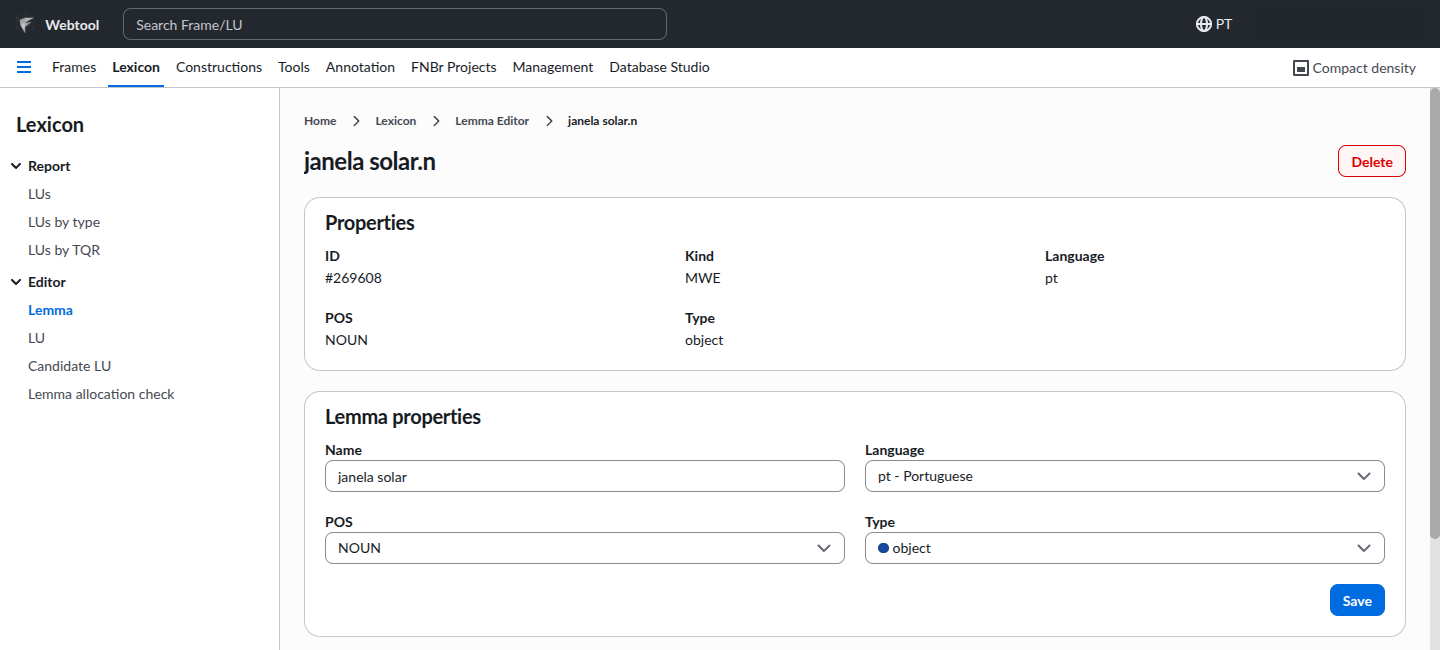
19. Check that Properties shows Kind: MWE. The heading should read
janela solar.n; Webtool adds the .n suffix to the display name.
20. Scroll to Pattern and inspect the generated pattern and graph. In
this example, {=janela} {=solar} matches the component lemmas in that order.
The graph is already available, so you don't need to click Compile pattern
unless you edit the pattern.
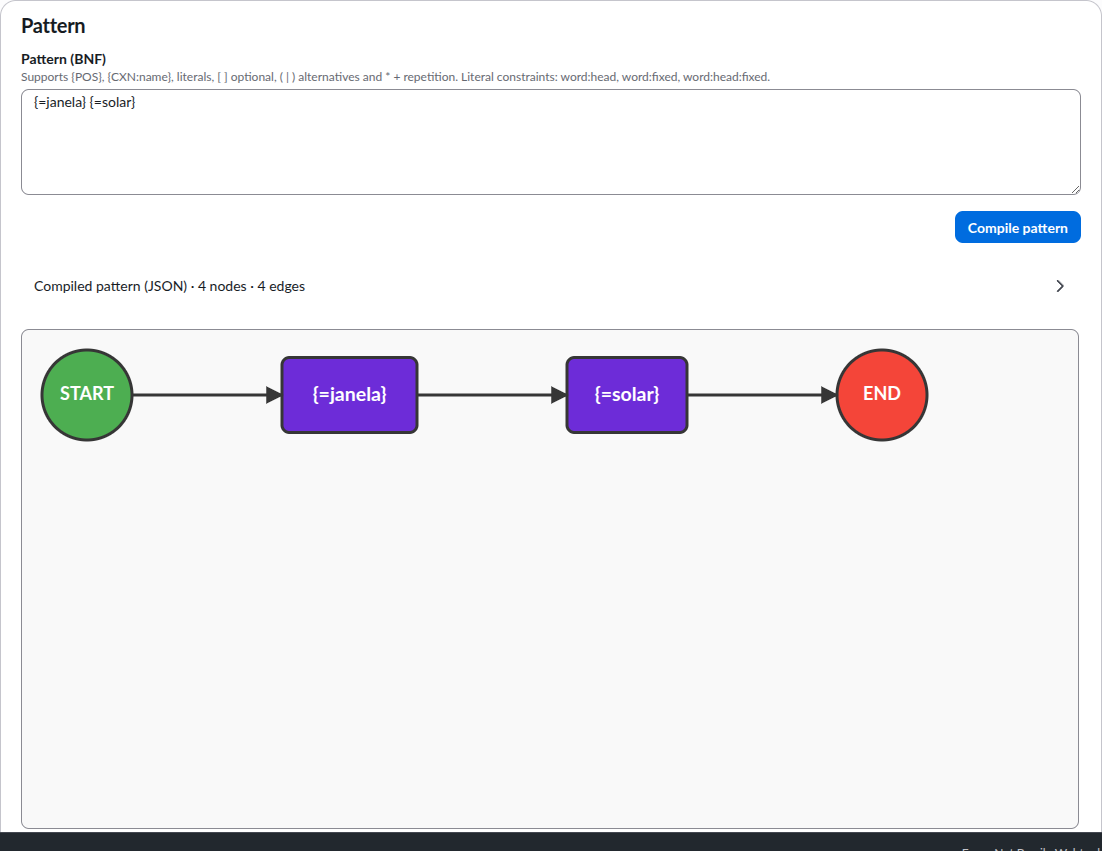
For an explanation of {=…}, literal words, and other notation, see
Lemma patterns.